Requirement:
For any Salesforce Admin or developer, if there is a requirement to Update multiple workflow rules for multiple objects (for any Standard or Custom Object).
Workflow updates includes:
- Changing Rule description for multiple rules
- Changing Rule status from Active to Inactive or vice-versa for multiple rules
Benefits of using BOFC Application for Updating Workflow rules:
- Works for both Standard and Custom Object rules
- Perform any action on (Single or Multiple) workflow rules
- Perform any action on rules of (Single or multiple) objects at same time
- Easy to use with few clicks
- Saves ample amount of time of doing manual work
To avail this feature, kindly make sure you have installed the latest version of the application. You can upgrade your package using either of two ways:
- In Salesforce, go to “BOFC Home > Settings > App Version > Click to Upgrade” — or —
- Refer the below button to quickly upgrade your package to the latest version and explore its complete benefits:
Few Simple Steps to Update Workflow Rules in Salesforce
1. Open the BOFC Home > Click “Bulk Update, Delete & Export Workflow Rules”
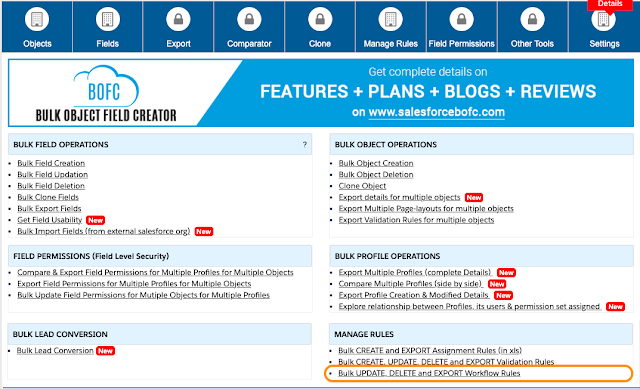
2. It will open below screen for Workflows

3. User can select single or multiple objects for which workflow rules needs to be updated. Also, select “BOFC Update Workflow Rules” and it will display a button called “Display Workflow Rules”

4. Once this button is clicked, it will display all the workflow rules related to selected objects:
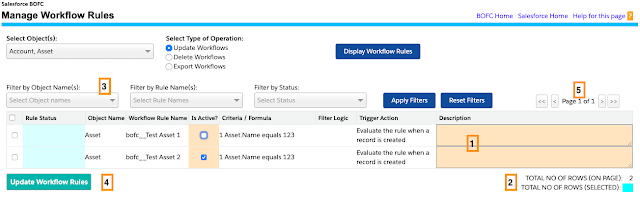
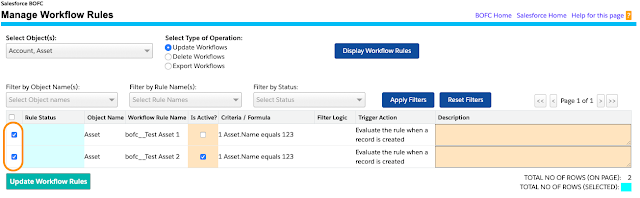
Above image has many features (each number has its description as below):
- Display all the workflow rules where “Is Active” and “Description” columns are editable
- It shows user of workflows on page and how many are selected
-
- User can use filter options to filter specific workflow rules:
- Filter by Object Name (if multiple objects are selected)
- Filter by workflow rule names
- Filter by Status
- Use “Apply Filters” and “Clear Filters” button to search and reset them.
-
- Button “Update Workflow Rules” – On clicking this button, it will update all the selected workflows in the system
- Use Pagination to navigate to next/previous page, if number of workflows are more than 80.
5. Select all the workflow rules by clicking “Select All” or by selecting each workflow rules individually.
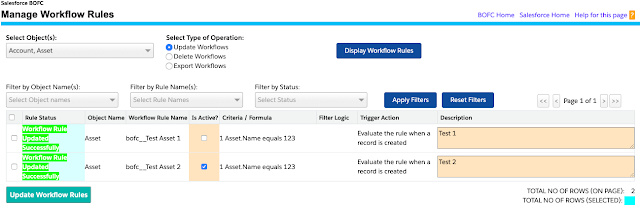
6. Final Status in Green. Workflow updated successfully
Have a look at step by step detailed video to “Update Multiple Workflow Rules in few click”
******************************************************************************
Have you started using BOFC yet? Thousands of BOFC users have been able to save time & boost productivity using our Salesforce Metadata app. Click here to install the latest version of BOFC application in your Salesforce instance & explore its complete benefits for you.
For any queries or suggestions, you can contact us at https://www.bofc.io/#contact or mail us: support@bofcapp.io. Our BOFC Expert will help you get the best out of it.